
Color by Number Generator: Make One From a Photo in 60 Seconds
A color by number generator turns a photo or a shape into a numbered outline where each number stands for one color. Upload an image, pick how many pieces you want, then print the sheet or play it on screen — no drawing skill required.
Most of the free generators you'll find do one thing: they hand you a PDF. That's genuinely useful if you own paints and a printer. It's less useful at 4pm on a Tuesday when your 7-year-old wants an activity now and the printer is out of magenta.
This is a walkthrough of how these tools actually work, what the output looks like at each difficulty setting, and which generator to pick depending on whether you want paper or a screen.
The free generators, compared
| Tool | What you get | Playable on screen | Share by link or QR | Free limit |
|---|---|---|---|---|
| PBNify | Printable paint-by-number outline | No | No | No stated cap |
| Davincified | Printable PDF, no watermark | No | No | No stated cap |
| paint-by-number.com | Color-by-numbers sheet | No | No | Advertises "no limit" |
| SnapXam | Color by number from any image | No | No | Free |
| QrdyCraft | Sticker mosaic sheet + online puzzle | Yes | Yes | 100 per month |
The honest read: if all you want is an unlimited stream of printable pages, the four tools above are simpler and they don't meter you. QrdyCraft is the only one in this list where the finished thing is also playable — a drag-and-drop puzzle you can hand to a kid on a tablet, or pass to a grandparent as a link.
Before and after: what the generator actually does
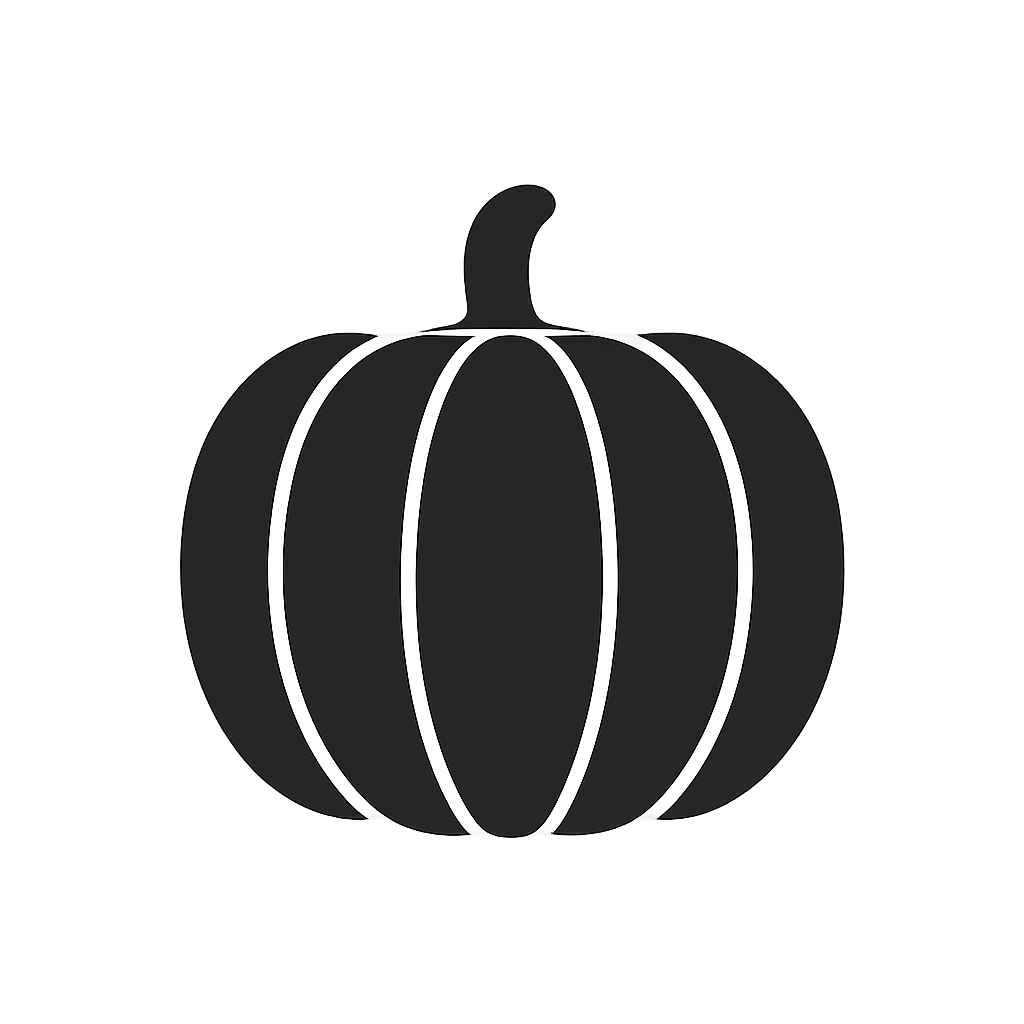
Every one of these tools runs the same two-stage pipeline. First it reduces your image to a clean shape. Then it divides that shape into regions and assigns each region a number and a color.
Here's stage one — a plain pumpkin silhouette, no detail, no numbers:
And here's the same silhouette after tessellation, cut into 45 numbered pieces across 6 colors:
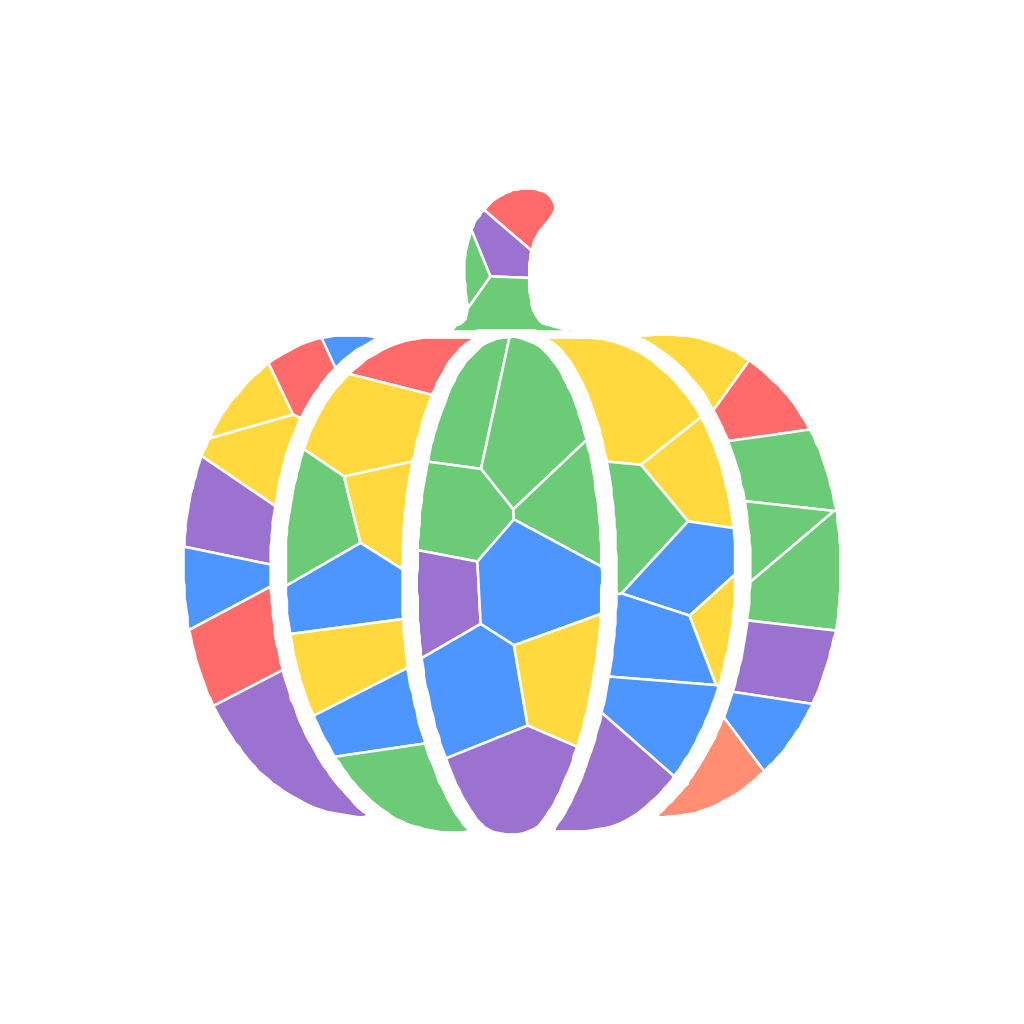
That's the whole trick. The reason the result looks hand-designed is that the piece boundaries follow the shape's own ribs and curves rather than a square grid — which is also why a photo with a clear subject converts far better than a busy one.
How it works, in three steps
- Upload a photo, or type a word. A photo of a pet, a drawing your kid made, or just the word "rocket" — all three produce a shape. Photos with one clear subject and a plain background convert cleanest; group shots and busy backgrounds turn to mush at every generator, not just this one.
- Pick a difficulty. This controls how many pieces the shape gets cut into. More pieces means a longer, fussier activity with smaller stickers.
- Print it or play it. Download the sticker sheet and cut it out, or open the online puzzle and drag pieces into place. The online version tracks progress as you go, so a kid can stop and come back.
What each difficulty setting really gives you
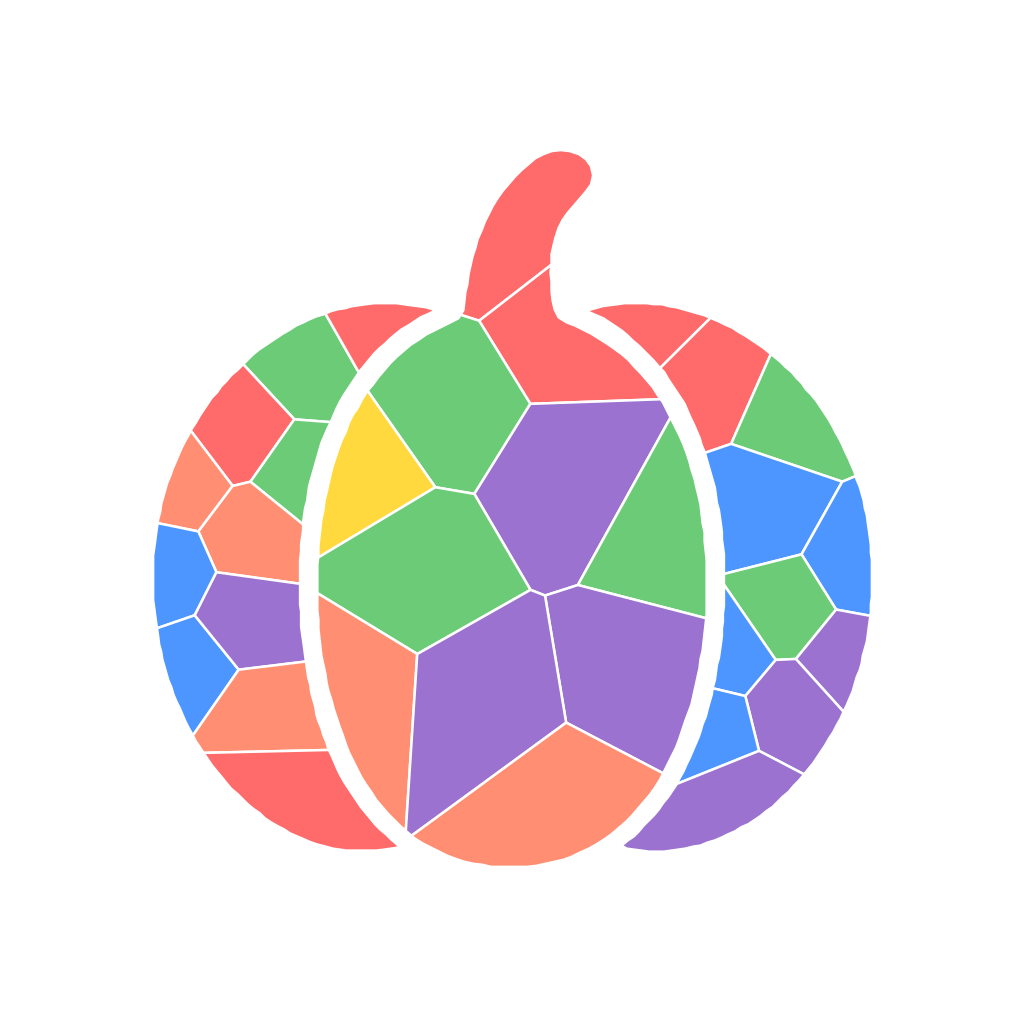
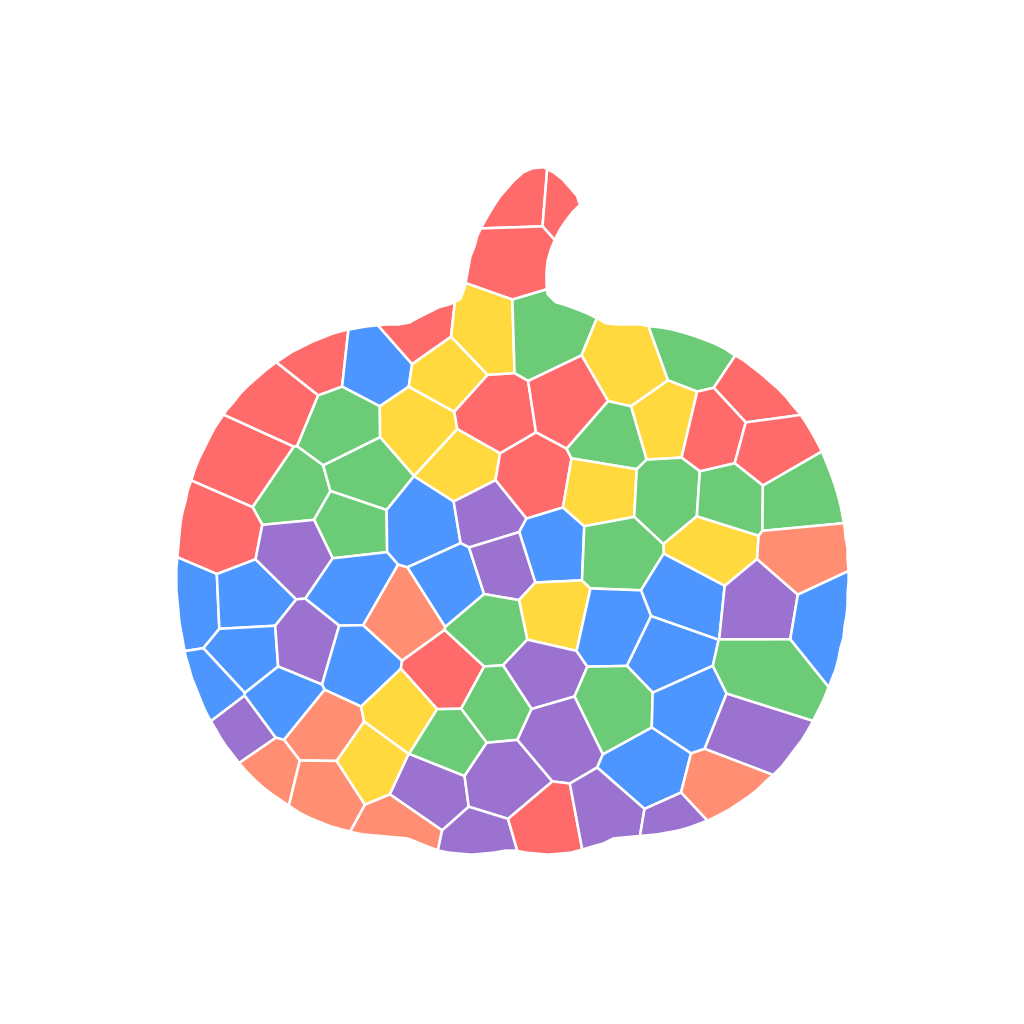
Piece counts vary by shape, so treat the labels as a range rather than a promise. Here are the three real outputs from the same pumpkin, generated for this article:
| Difficulty | Pieces on this shape | Rough age fit |
|---|---|---|
| Easy | 33 | 4–6 |
| Medium | 45 | 7–9 |
| Hard | 81 | 10–12 |
Easy — chunky pieces, big enough for small fingers to peel and place without tweezers:
Hard — 81 pieces on the identical outline, closer to a real sticker-mosaic book:
A useful rule from watching kids do these: pick one level below what you think they can handle. A 45-piece sheet finished in one sitting beats an 81-piece sheet abandoned at piece 30.
The free limit, stated plainly
QrdyCraft gives you 100 free mosaics a month — more than one a day, every day. The competitors above mostly advertise no cap at all, so if raw volume is what you're optimizing for, they win that line. What the 100 buys you is the part they don't have: a puzzle that plays in a browser and travels as a link or QR code, so the kid doing it doesn't need your laptop, an account, or an app install.
Worth being clear about the positioning too: this is a tool a parent uses to make something, which a child aged roughly 4–12 then plays with or sticks down. It isn't an app you hand a toddler.
Make your first mosaic at craft.qrdyai.com →
Print or screen: which to choose
Go printable if you want a screen-free afternoon, you already own a printer and sticker paper, and the peel-and-place motion is the point — that's the fine-motor part, and it's the reason these activities work so well for younger kids.
Go online if you're in a waiting room, a car, or a hotel; if there's no printer; or if you want to send the finished puzzle to a relative who'd enjoy doing it too. The QR code is the whole feature here: one scan, no sign-in.
Plenty of families do both — play the puzzle on screen first to learn the shape, then print the same design to stick down for real.
Related reading
- Free Paint by Number Generator: 6 Tools Compared — a wider roundup, including the paid kit sellers
- How to Turn a Photo Into a Paint by Number (Free) — photo-specific tips for cleaner conversions
- Orange Pumpkin mosaic template — the ready-made version of the design used throughout this article
Frequently asked questions
What is a color by number generator?
It's a tool that takes an image and converts it into a numbered outline, where every number corresponds to one color. You upload a photo or pick a shape, the tool reduces it to clean regions, and each region gets a number. You then fill in the colors — with paint, pencils, stickers, or by dragging pieces on a screen.
Are color by number generators free?
Most are. PBNify, Davincified, SnapXam and paint-by-number.com all let you convert images and download a printable result at no cost, and several advertise no usage cap. QrdyCraft gives you 100 free mosaics a month — more than one a day — and adds an online playable version and QR sharing that the printable-only tools don't have.
What kind of photo works best?
One clear subject on a plain background. A pet sitting against a wall, a single flower, a kid's drawing on white paper. Group photos, busy backgrounds and low-contrast images all convert badly — the generator can't tell the subject from the clutter, so you get muddy, shapeless regions. If a photo isn't working, try cropping tight on the subject first.
How many pieces should I pick for my child's age?
As a rough guide: easy (around 30 pieces) suits ages 4 to 6, medium (around 45) suits 7 to 9, and hard (80 or more) suits 10 to 12. Exact counts vary with the shape. If you're between two levels, pick the easier one — a finished sheet is worth more than an abandoned one.
Can I print the result instead of playing it on screen?
Yes. The design downloads as a sticker sheet you can print on regular paper or sticker paper, cut out, and stick down by hand. The peel-and-place motion is the fine-motor part, which is why a lot of parents print rather than play, especially for younger kids.
Do I need an account or an app?
No app install is needed — everything runs in a browser. Sharing works by link or QR code, so a child can open the puzzle on a different device without signing in or downloading anything. This is a tool a parent uses to create something for a child aged roughly 4 to 12, not an app you hand to a toddler.